New Citrix Login Process
1
Select Authentication Method
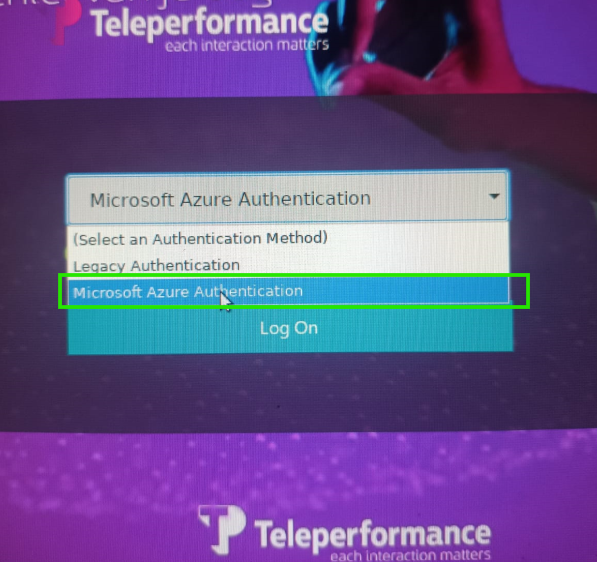
Open Citrix and select Microsoft Azure Authentication from the dropdown menu, then click Log On.
2
Enter Your EMEA Credentials
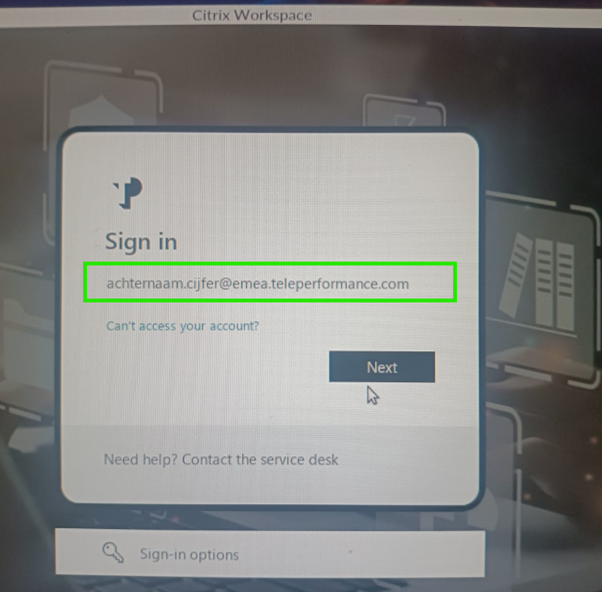
Type your Full UPN (e.g., achternaam.cijfer@emea.teleperformance.com) and your standard password.
3
Choose Verification Method
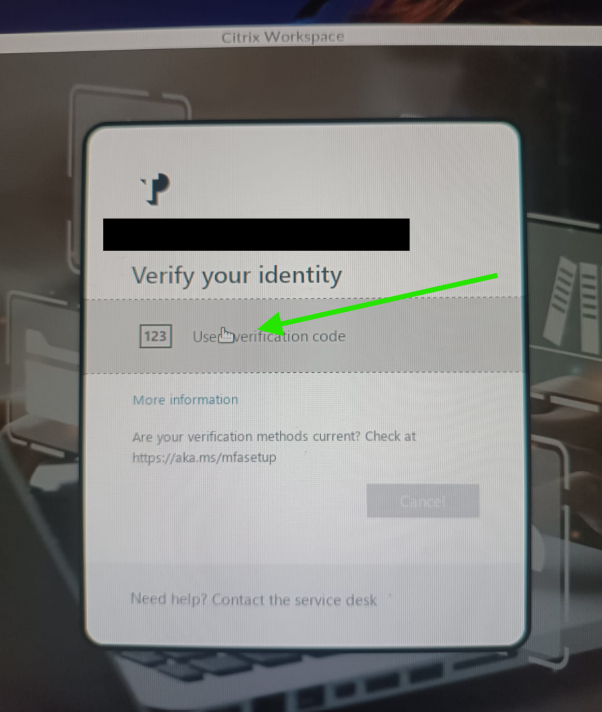
On the identity screen, click the link: "Use verification code."
4
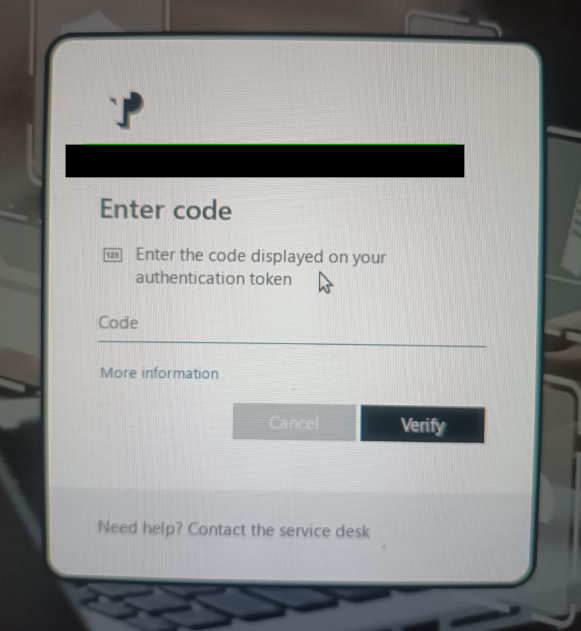
Generate Your Token Code
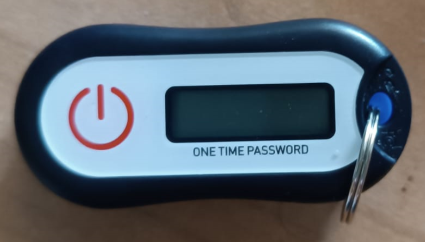
Press the power button on your physical token. A 6-digit code will appear on the screen.
5
Finalize Secure Entry
Enter the 6-digit code. You will be prompted for your EMEA password one last time to securely open your workspace.
6
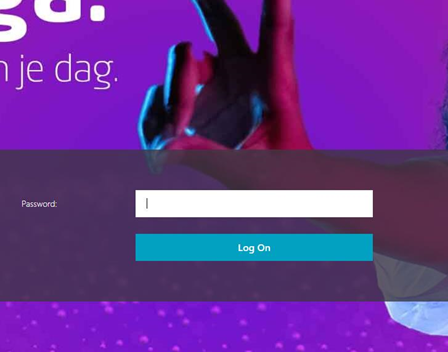
Enter EMEA Password Again
Enter the EMEA password one more time
💡 Quick Tips for Success
- Physical Token: Keep it on your desk; you'll need a fresh code for every login.
- UPN Login: Your short username will not work. You must include the full @emea.teleperformance.com suffix.
- Support: Stuck? Contact the Service Desk for immediate assistance.